
The Quotes list
Open Quotes in the sidebar. Each row is a quote; selecting a row opens its detail page.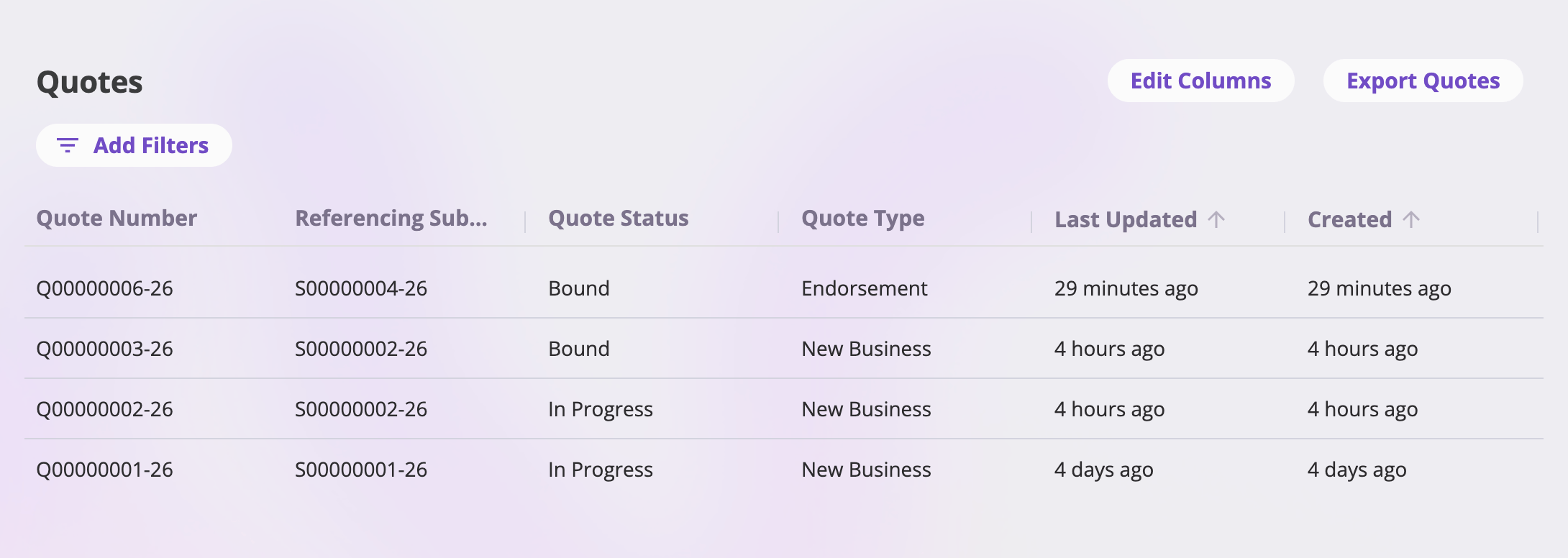
The Quotes list with its Edit Columns and Export Quotes toolbar.
Toolbar
There is no “create quote” button here: quotes are created from a
submission (its Quotes card’s New Quote
button) or by the quote wizard when you create a submission — see
Quoting new business.
Columns
Column headers follow your company’s configured field labels. By default the list shows Quote Number (always pinned as the first column), the Submission the quote belongs to, Status, Type, Last Updated, and Created. Edit Columns can add any other configured quote field, plus the system columns Created, Last Updated, and Created By.- Sorting — the Created and Last Updated columns are sortable (the default sort is Last Updated, newest first).
- Filters — Add Filters shows the filters configured for the Quotes list, with inputs chosen by each definition (text, dates, numbers, option choices, users, or linked records). Active filters show as pills you can edit or remove.
- Pagination — the footer pages through results at 25, 50, 100, or 200 rows per page.
Quote statuses
Every quote is in exactly one status. The status keys are fixed by the platform; the label shown in the Status column is configurable per company (defaults in parentheses). The quote detail header shows its own spelled-out label:Quote types
Every quote also carries a type, set when it’s created and never changed. The type determines what binding the quote does — and which actions it offers:
Endorsement, cancellation, and reinstatement quotes are anchored to the policy
they modify from the moment they’re created — they appear on that policy even
before they’re bound. See Servicing a policy.
The quote detail page
The detail page is headed by the quote number and a status tag, with the header buttons at the top right and the tab bar beneath.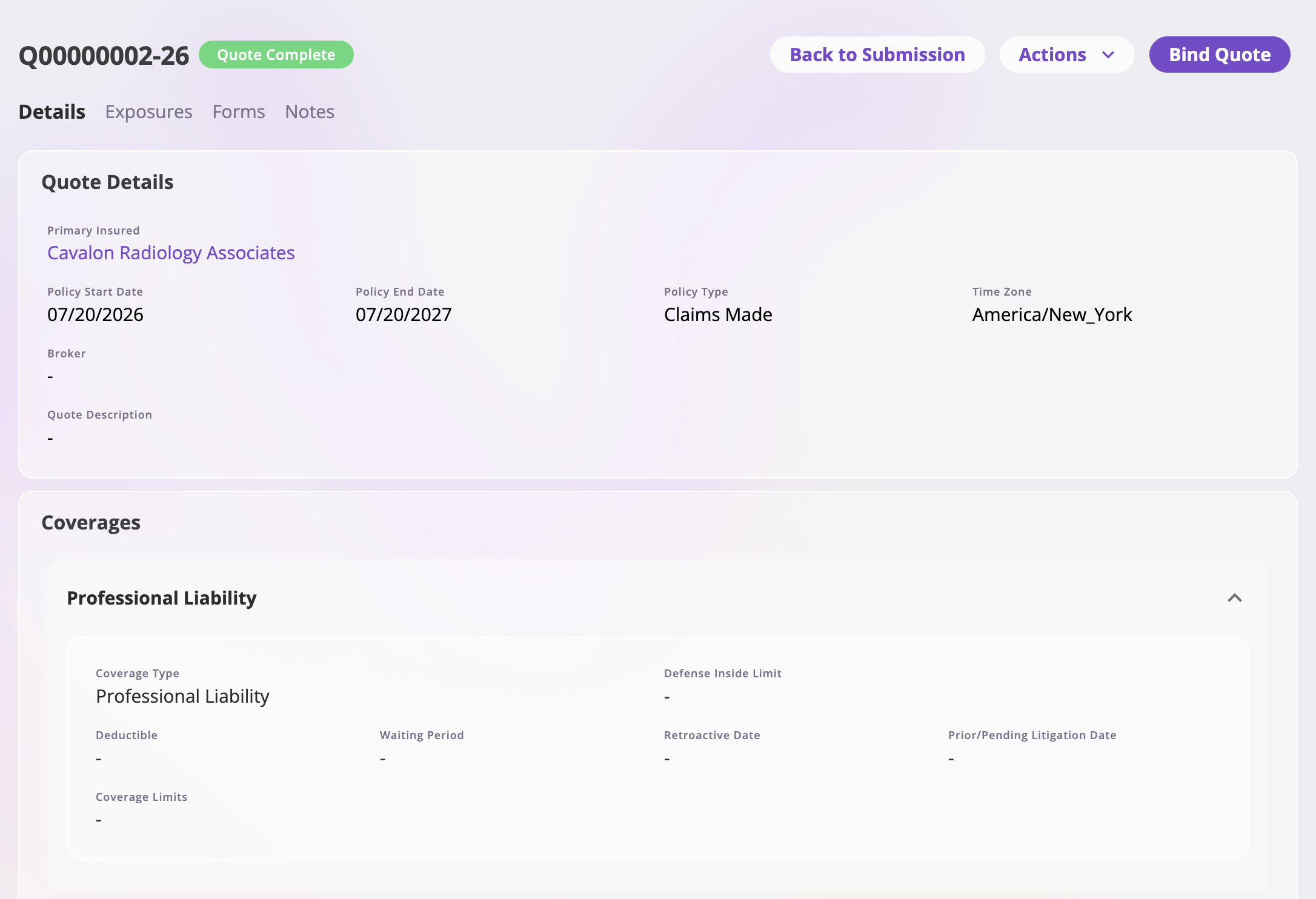
A completed quote's detail page: quote number, status tag, Back to Submission, the Actions menu, and the Bind Quote button.
Header buttons
Besides the Actions menu, the header offers direct buttons that follow the quote’s state:Tabs
Actions
The Actions menu at the top right collects the quote-level actions. The menu (together with Continue Editing and Bind Quote) only appears for roles that can update quotes; within it, options your role isn’t allowed to perform don’t appear either.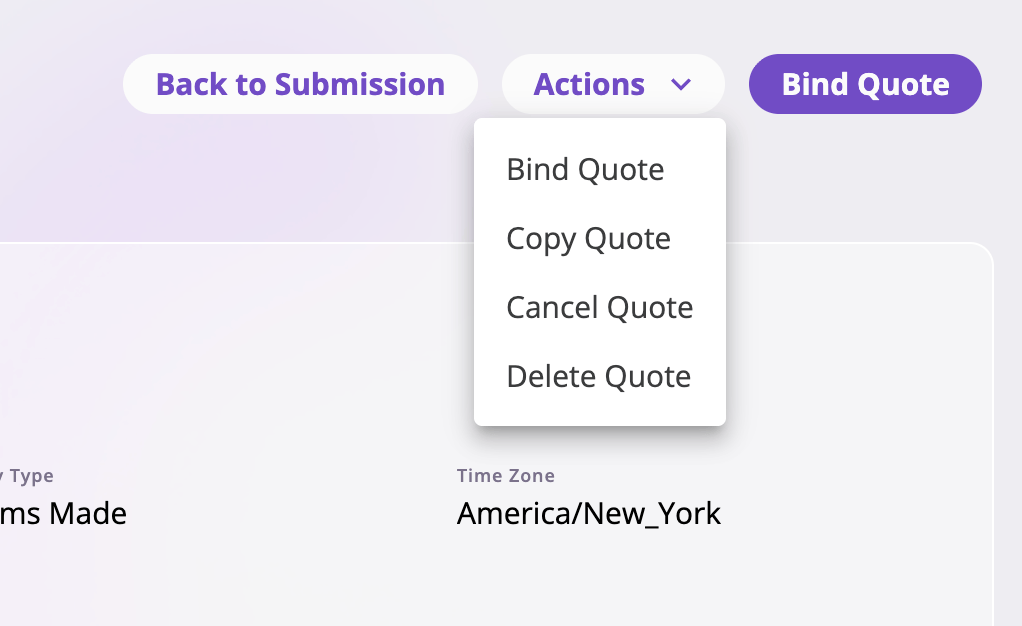
The Actions menu on a completed new-business quote: Bind Quote, Copy Quote, Cancel Quote, and Delete Quote.
The menu at a glance
Which actions appear follows the quote’s status (and, for some, its type):Complete a quote
Completing isn’t a menu action — it’s the final step of the quote wizard. On an In Progress quote, select Continue Editing, work through to the last step, and select Complete Quote (on a new-business quote it’s a split button also offering Bind Quote directly). Completing marks the quote Quote Complete and returns you to its detail page. See Quoting new business.Bind a quote
Bind Quote (the callout button and the menu entry do the same thing) starts the bind flow, which applies the completed quote — a new-business or renewal quote becomes a policy; an endorsement’s change is recorded on its source policy. Availability: the quote must be Quote Complete and of type New Business, Endorsement, or Renewal. Cancellation and reinstatement quotes never offer Bind — their own short flows confirm directly, so they go straight from In Progress to Bound and never sit at Quote Complete. See Servicing a policy.Copy a quote
Copy Quote opens the wizard on a new quote pre-filled from this one — same type, same submission — so you can quote a variation without re-keying. For endorsement, cancellation, and reinstatement quotes, the copy stays anchored to the same policy and effective date. Availability: any In Progress or Quote Complete quote, and a bound new-business quote (its copy is a fresh new-business draft). A bound endorsement/renewal/cancellation/reinstatement quote can’t be copied — it has already been applied to its policy. Requires a role that can create quotes.Cancel a quote
Cancel Quote asks for confirmation, then sets the quote’s status to Canceled. The quote and all its tabs remain viewable; use it for a quote that was completed but won’t be taken up. Availability: Quote Complete quotes only. (An In Progress quote you no longer want is deleted, not canceled.)Delete a quote
Delete Quote asks for confirmation, permanently deletes the quote, and returns you to its submission. Availability: In Progress, Quote Complete, Canceled, and Archived quotes — a bound quote can’t be deleted. Requires a role that can delete quotes.Deleting a submission’s quotes is also the prerequisite for deleting the
submission itself — see
Submissions → Delete a submission.