
Claims vs. incidents
Every event is one or the other:- An incident is a loss that’s been reported but hasn’t (yet) become a claim — a precautionary notice, a circumstance being watched.
- A claim is an actual demand being worked.
The events list
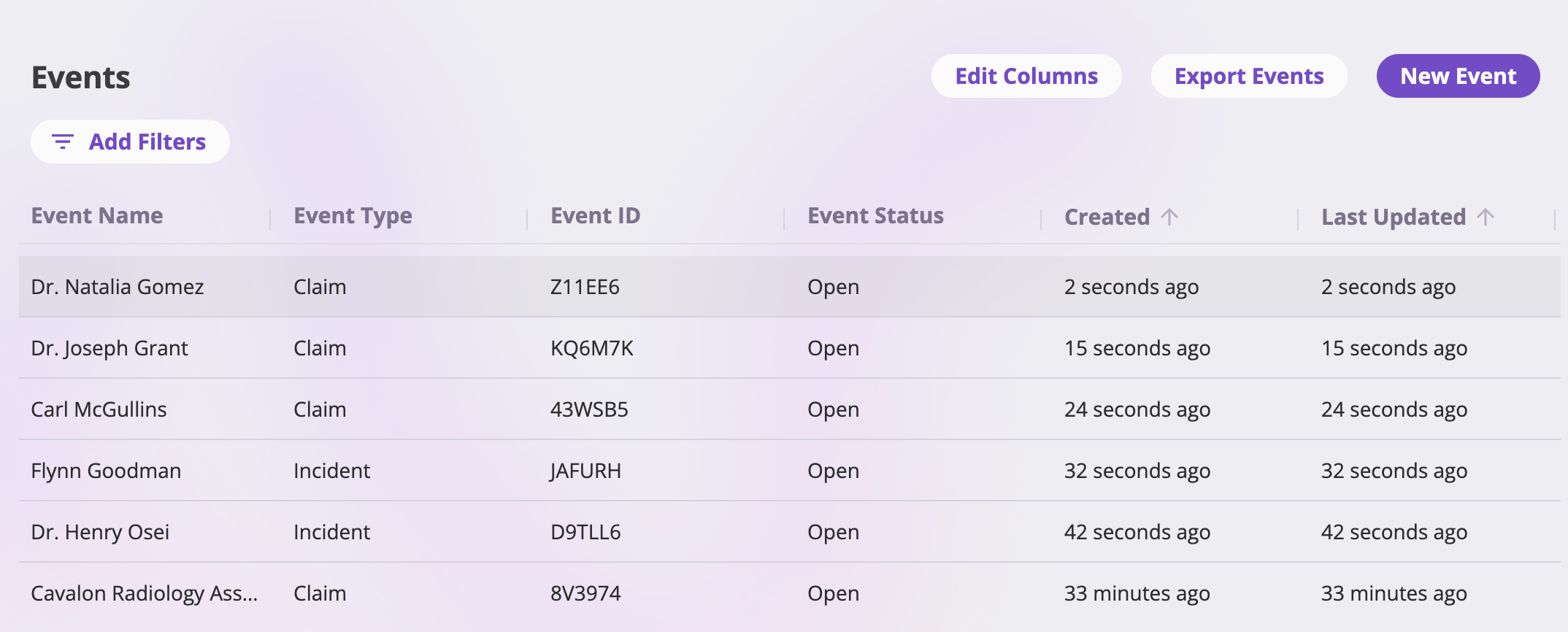
The events list — one row per claim or incident.
- Columns — the defaults are Event Name, Event Type (claim or incident), Reference ID (the event’s short generated identifier), Status, Created, and Last Updated. Edit Columns adds, removes, and reorders columns — any configured event field, plus the Created By system column.
- Claim vs. incident — the Event Type column shows which each event is; filter on it to see only claims or only incidents.
- Filters — Add Filters shows the filters configured for the Events list; active filters show as pills.
- Sorting & pagination — click a sortable header to sort (newest updated first by default); pick 25, 50, 100, or 200 rows per page.
- Opening an event — click a row to open its detail page.
- Export Events — the standard entity export (Excel, CSV, or Google Drive), carrying your current filters. See Exports & saved views.
Creating an event
New Event opens the create page: the event’s fields as configured for your company. The Create button enables once every required field is filled; creating saves the event and opens its detail page. A few things the platform handles for you on save:- Linked exposures are required — an event must be filed against at least one exposure.
- The event name is generated automatically from the linked exposures (and the claimant, where your configuration captures one), and follows them as they change. You can override it later with Rename from the Actions menu.
- A reference ID is stamped automatically.
- The status starts as Open.
Statuses
An event is either Open or Closed — shown as a tag next to the event’s name and as the Status column in lists. Closing records a closed date; re-opening clears it. Closing locks nothing away: every tab stays viewable, and a closed event can be re-opened at any time. See Event actions.The event detail page
The header shows the event’s name, its Open/Closed status tag, and the Actions menu (summarized below).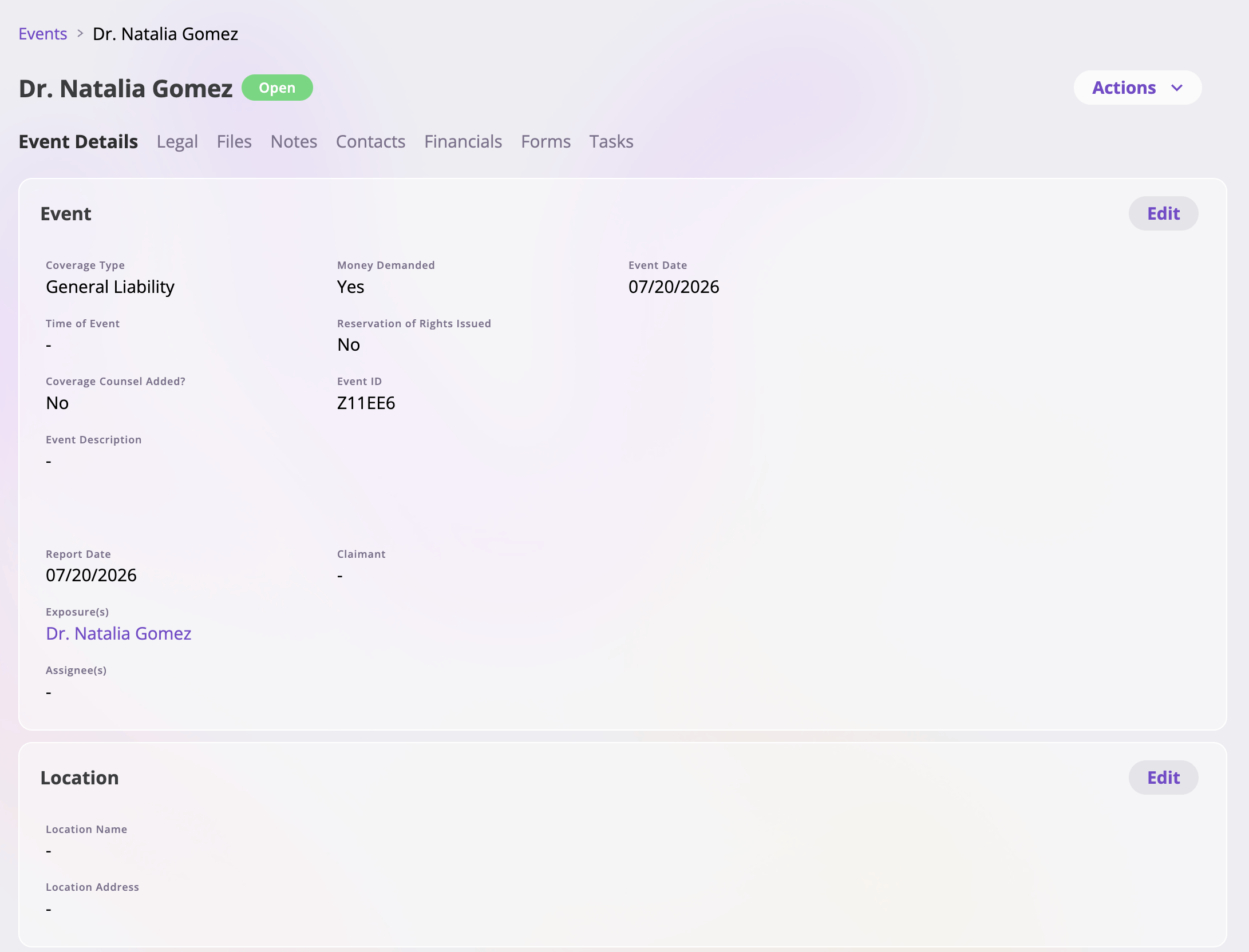
A claim's detail page — name, status tag, Actions menu, and the full tab set.
Tabs at a glance
The Event Details tab
The event’s fields, laid out in cards — which cards and fields appear depends on your company’s configuration (dates of loss and report, coverage type, descriptions, adjuster details, and so on). To change a value, edit the card, make your changes, and save; only the fields you actually changed are written, and a card can be cancelled to discard its edits.The Legal tab
The Legal tab collects the event’s litigation details, in the same editable-cards layout as Event Details. The exact fields are configured per company; a typical setup includes:- Lawsuit information — whether a lawsuit has been filed, the case number and case name, and the served / filed / trial dates.
- Plaintiffs and defendants — the parties to the suit, each with their attorney linked from your Directory (with the attorney’s phone, email, and firm pulled from the directory record — and a Create new attorney option right in the picker if they aren’t in the Directory yet).
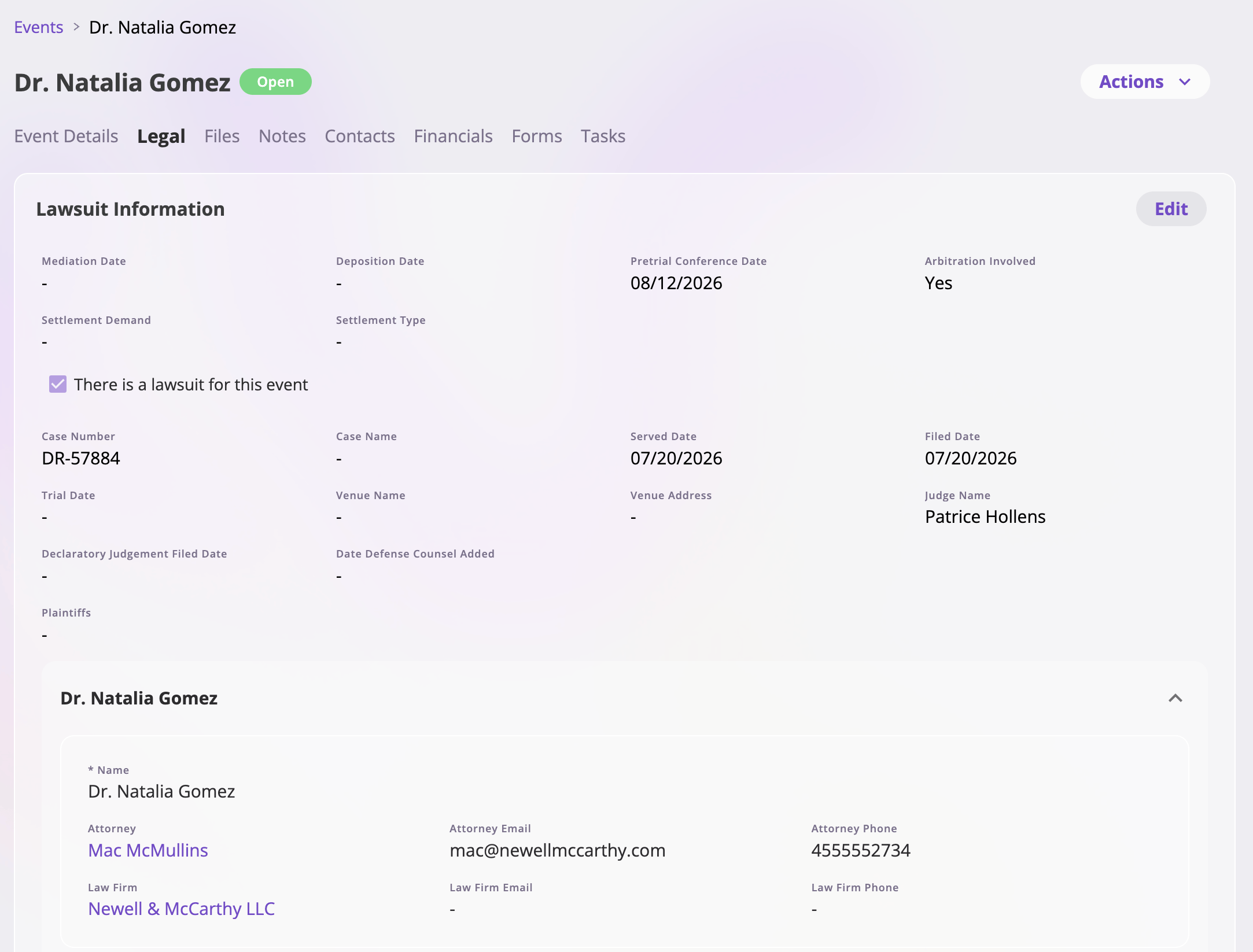
The Legal tab — lawsuit information and the parties, with attorneys linked from the Directory.
The Contacts tab
The people involved in the loss — the claimant, opposing counsel, adjusters, witnesses — are attached to the event as contacts: links to people in your Directory. From the tab you can add contacts (searching the Directory, or creating a new person inline), edit a person’s details in place, and remove a contact (which only unlinks — it never deletes the person). The full behavior is documented at Directory & contacts.Where your configuration captures a claimant, the platform uses it when
generating the event’s name — so a claim reads naturally in lists
(“‹claimant› vs. ‹insured›”).
The Financials tab
The event’s money view: the Overview report (with a reserve-update action on each invoice type that carries reserves), and sub-tabs for the event’s invoices and its reserve update history. Everything created here is automatically linked to the event. The full reference is the Financials guide.The Actions menu
The Actions menu at the top right collects everything you can do to the event as a whole. It adapts to the event — claims and incidents get their own flavors of each action, options follow the event’s status, and actions your role can’t perform don’t appear.
Every action — its dialog, availability conditions, and effects — is
documented action by action in
Event actions.