
The screening card appears only where your configuration places it, and the
boxes it shows are chosen per placement. If you expect screening on an
exposure type and don’t see it, contact your AI Insurance team. (Screening
is also available to integrations through the
OFAC screening API.)
Running a screening
The card shows an entry box for each configured detail. Name is always present — it’s the one detail a screening can’t run without — and the rest vary by configuration: Subject type, Date of birth, Gender, Citizenship, Nationality, Phone number, Email address, Crypto address, Address, and Identity documents (add rows with Add identity document).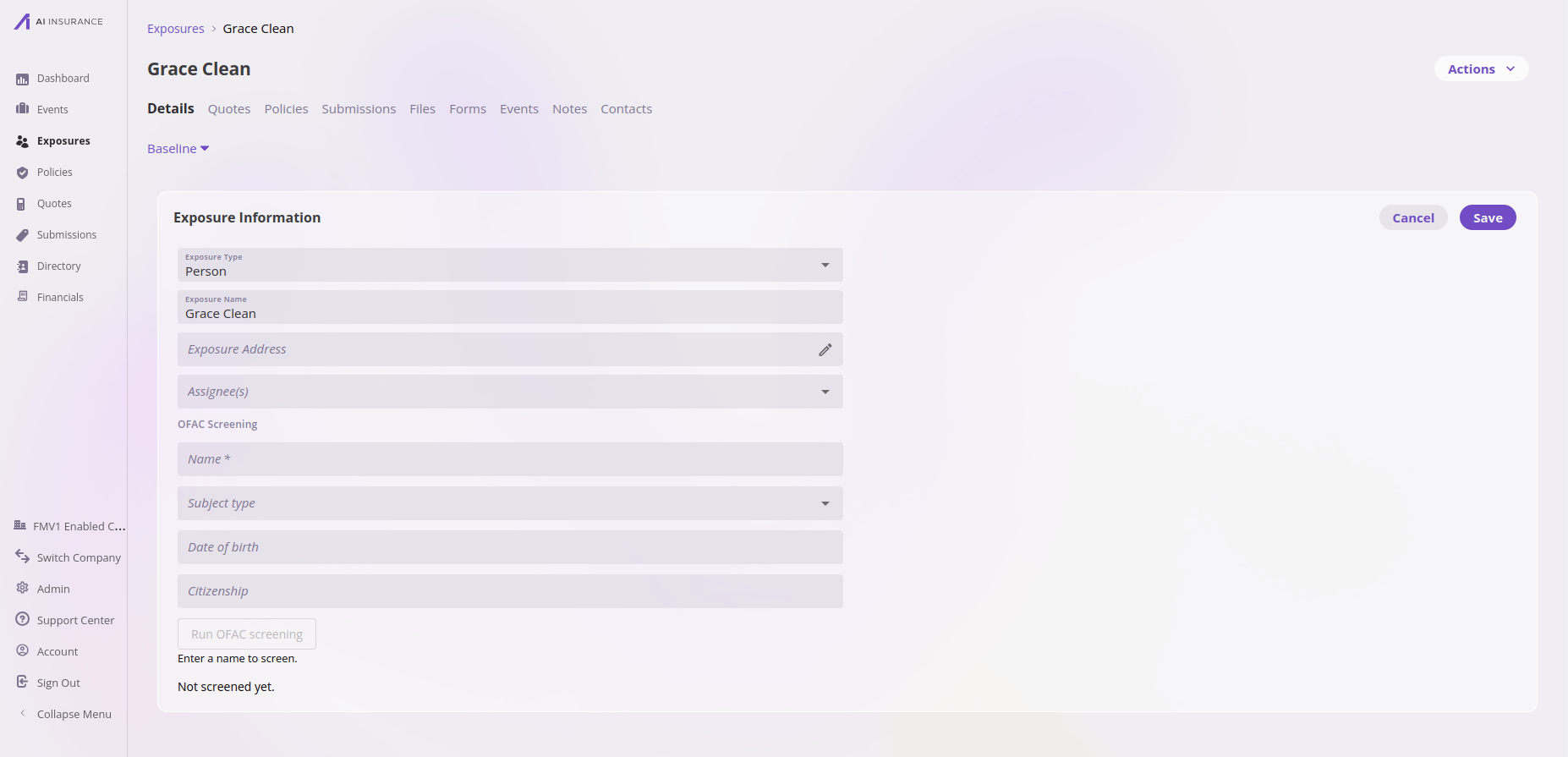
The screening card before its first run.
Which sanctions lists are checked and the match threshold are fixed platform
settings, recorded on every result. They are not configurable per company or
per screening.
Reading a result
A clean run shows The screening service returned no potential matches. Every saved result also records Screened: (when) and Screened by: (who, or External API when an integration ran it), plus a review status: No review needed, Review pending, Reviewed — cleared, or Reviewed — confirmed.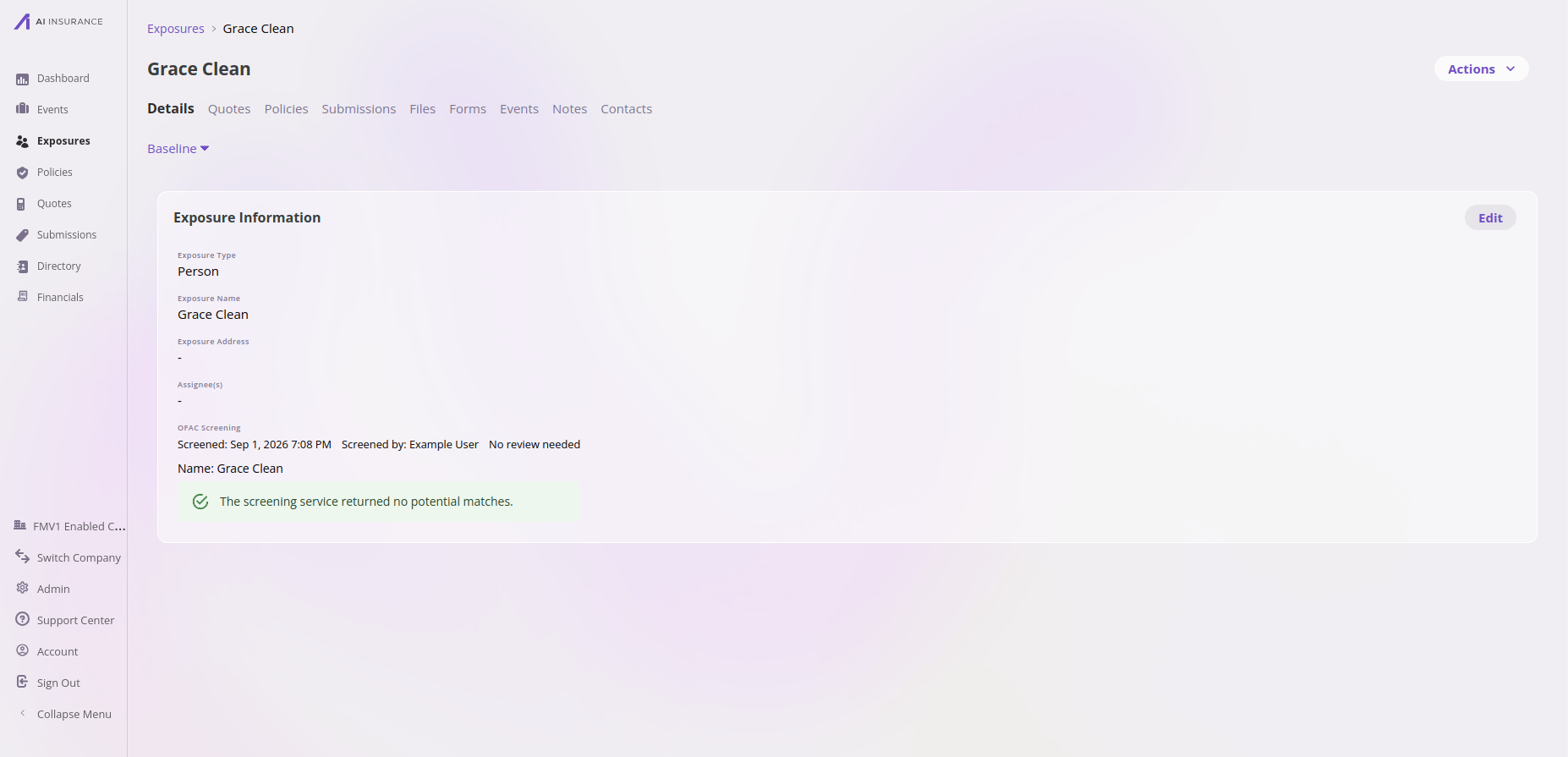
A clean result: no potential matches, with screening provenance.
Reviewing potential matches
When the service finds similar names, the result shows Potential matches (N): These names resemble entries on the sanctions lists screened. Review each one. Each match card carries the sanctions record’s name, its source list, type, programs, match score, and record id, with a status caption — Not yet reviewed, Confirmed as a match, or Declined — not this subject. Anyone who can edit the exposure can review: select Confirm or Decline on each match, optionally adding a Review note (optional). A decision can be reversed with Clear decision. Every decision records who made it and when — Reviewed by · — and the overall review status stays Review pending until every match is decided.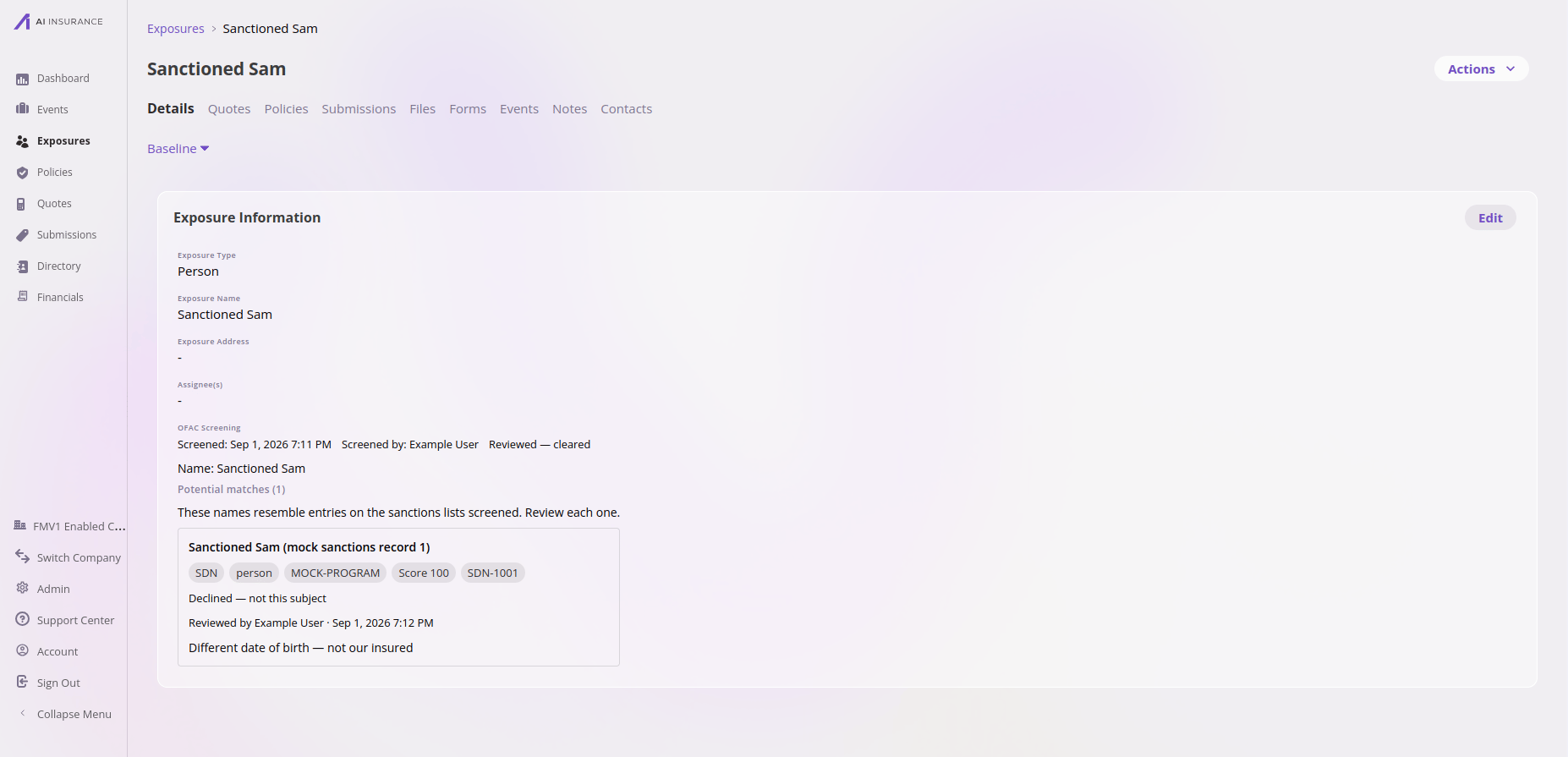
A reviewed potential match: declined, with the reviewer, time, and note recorded.
A potential match is a name similarity, not a determination that your
party is the sanctioned party — that judgement is exactly what the review
step exists for. Confirming a match records the conclusion; it does not
block anything.
When values change
A screening describes the values that were submitted, at the moment they were submitted. If an entry box is edited afterwards it shows Changed since the last screening, and the result carries a warning: These values have changed since the last screening. Re-run to update. The saved result stays visible — it’s still a true record of what was screened — but it no longer describes the current values.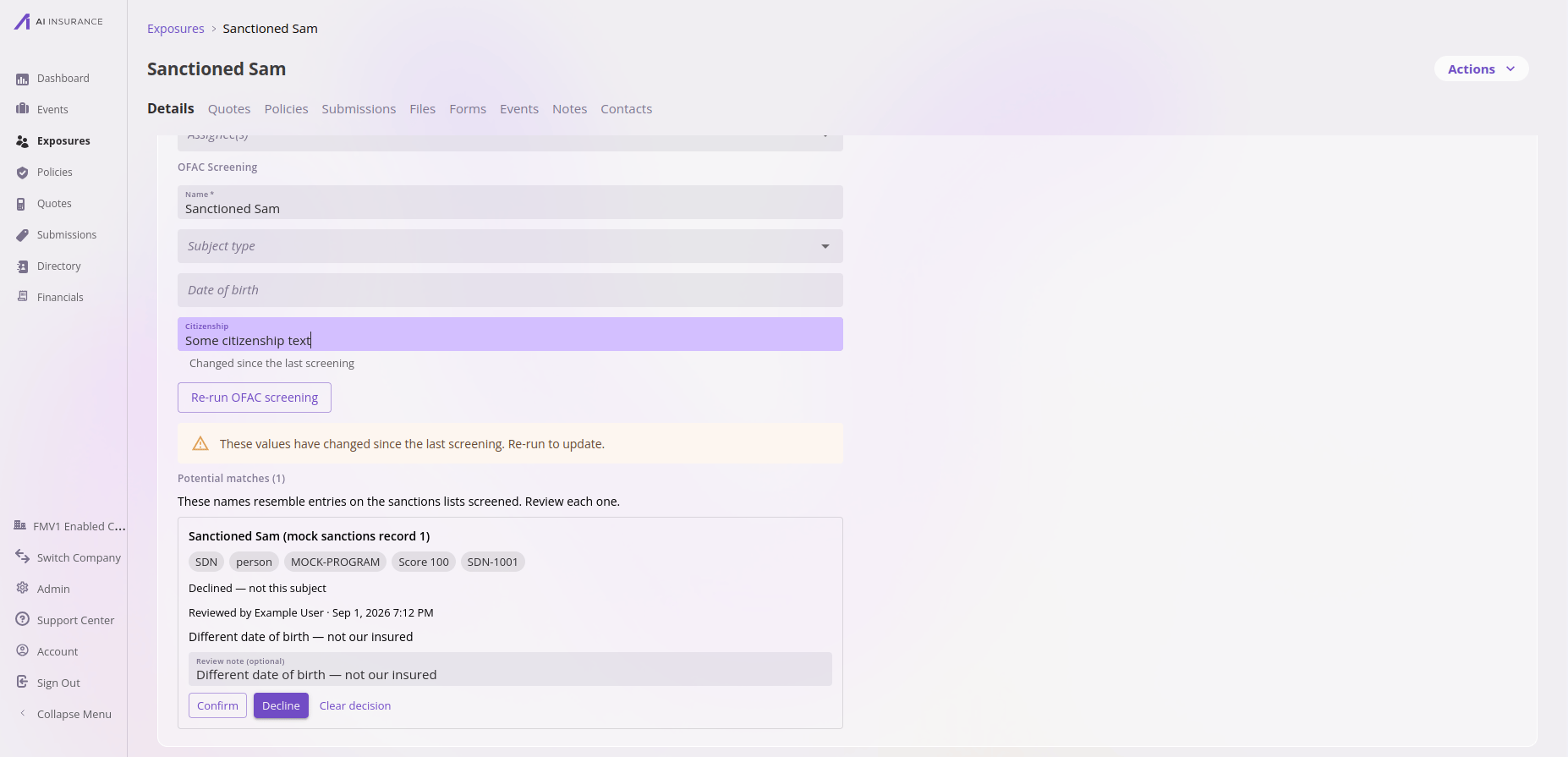
The staleness warning after editing a screened value.
Screening status on a quote’s Exposures step
Where your configuration enables it, the Exposures table in the quote wizard carries an OFAC status column, so every exposure’s screening state is readable without opening each one. Each row shows a short phrase:
A Show OFAC status switch above the table turns the column off and on. It
starts on.
The column is not clickable. Each row’s edit control is the way into the
exposure, where the full OFAC screening card and its Re-run OFAC screening
button live.
When a row’s result no longer fits it
Two muted notes can appear under a phrase:- Screened values have changed when a screened value was edited afterwards. This is the same condition the screening card reports, and re-running clears it.
- Screened as “” when the exposure has been renamed since it was screened. Read this one carefully: re-running on its own screens the name the card still holds, so change the Name box on the OFAC card to the current name first. A name that differs on purpose, such as a legal name or an AKA, keeps reporting this, which is the honest answer rather than a claim the result is out of date.
The banner above the table
When any exposure on the quote needs attention, a banner appears at the top of the card. One banner shows at a time, the most serious that applies:- A confirmed potential match, in red. A reviewer concluded that one of the potential matches applies. This is the only one of the two that reports a finding rather than outstanding work.
- Exposures needing OFAC attention, in amber. Something is waiting on a person: potential matches nobody has decided on, a screening that did not complete, or both. The banner counts them together, and the status column is where you see which is which.
The column, the toggle, and the banner appear only where your configuration
turns them on for a company that is actually running OFAC screening. Every
state except the rename note is also visible on the exposure’s own OFAC
screening card.
Renewals
When a renewal quote opens in the quote wizard, each carried-over exposure that has screening values is automatically re-screened against the current lists, and the fresh results land on the renewal’s draft rows. Prior review decisions are not carried forward — the new screening is reviewed on its own.Permissions
Running a screening and reviewing matches are exposure updates and use that same permission — there is no separate screening authority. Without it, the run button reports You do not have permission to run a screening.When a screening fails
A run that doesn’t complete is saved as a failed screening with no result — never silently substituted. The card says what happened and invites a re-run, for example The screening service did not respond in time. Re-run to try again. An identity document missing its number or type is flagged — An identity document is incomplete and was not included in the screening. — and if the card reports Screening is not switched on for this field. Ask an administrator to check its placement., the field’s configuration needs attention rather than the values. Because every run is a fresh, independent screening, retrying a failure is always safe.Differences from the legacy app
If you used OFAC screening in the previous AI Insurance application, the behavior here is deliberately different in a few ways:
Importing exposures stores screening values but runs no screening — imported
parties are screened when someone next runs the card (see
the API overview for the same rule
on the integration side).